Examples
This page lists the examples provided with JetBot.
Make sure your robot is connected to WiFi as described in the software setup
In this example we'll control JetBot by programming from a web browser.

-
Connect to your robot by navigating to
http://<jetbot_ip_address>:8888 -
Sign in with the default password
jetbot -
Navigate to
~/Notebooks/basic_motion/ -
Open and follow the
basic_motion.ipynbnotebookMake sure JetBot has enough space to move around.
This example requires a gamepad controller connected to your workstation.
In this example we'll drive JetBot remotely, view live streaming video, and save snapshots!

-
Connect to your robot by navigating to
http://<jetbot_ip_address>:8888 -
Sign in with the default password
jetbot -
Shutdown all other running notebooks by selecting
Kernel->Shutdown All Kernels... -
Navigate to
~/Notebooks/teleoperation/ -
Open and follow the
teleoperation.ipynbnotebook
In this example we'll collect an image classification dataset that will be used to help keep
JetBot safe! We'll teach JetBot to detect two scenarios free and blocked. We'll use this AI classifier to prevent JetBot from entering dangerous territory.
We provide a pre-trained model so you can skip to step 3 if desired.

-
Connect to your robot by navigating to
http://<jetbot_ip_address>:8888 -
Sign in with the default password
jetbot -
Shutdown all other running notebooks by selecting
Kernel->Shutdown All Kernels... -
Navigate to
~/Notebooks/collision_avoidance/ -
Open and follow the
data_collection.ipynbnotebook

-
Navigate to
https://courses.nvidia.com/dli-eventin your web browser -
Enter the event code
DLI_Jet_Demo -
Sign in to your NVIDIA Developer Account if you have not already
-
Select
View Course->Course->Click here to begin->Start -
Wait a few minutes for the cloud training machine to set up
-
Launch the Jupyter Lab by selecting
Launch Task -
In the Jupyter Lab tab, navigate to
~/collision_avoidance -
Open and follow the
train_model.ipynbnotebook

-
Connect back to your robot by navigating to
http://<jetbot_ip_address>:8888 -
Sign in with the default password
jetbot -
Shutdown all other running notebooks by selecting
Kernel->Shutdown All Kernels... -
Navigate to
~/Notebooks/collision_avoidance -
Open and follow the
live_demo.ipynbnotebookStart cautious and give JetBot enough space to move around.
This video shows multiple JetBots running collision avoidance

In this example we'll have JetBot follow an object using a pre-trained model capable of detecting common objects likePerson, Cup, and Dog. While doing this, JetBot will run the collision avoidance model from Example 3 to make sure it stays safe!

-
Connect to your robot by navigating to
http://<jetbot_ip_address>:8888 -
Shutdown all other running notebooks by selecting
Kernel->Shutdown All Kernels... -
Navigate to
~/Notebooks/object_following/ -
Open and follow the
live_demo.ipynbnotebook
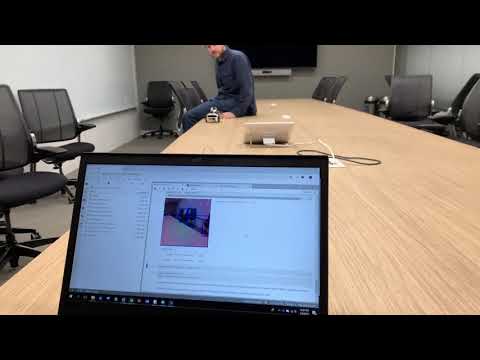
This video shows JetBot following a person and avoiding obstacles
Make JetBot smarter
- Collect more collision avoidance data
- Try out different neural network architectures (the torchvision package has lots!)
- Modify the collision avoidance example for a new task (ie:
cat/no cat. ifcatthenrun)
Create something entirely new!
- Modify the collision avoidance example for your own project
- Try out some new hardware with Jetson Nano. It's easy with Jetson GPIO and Adafruit Blinka
Share it with us