Download and usage
-
Download Stockfish from the official page.
Stockfish is completely free. -
Download a GUI.
A GUI (Graphical User Interface) is is needed to conveniently use Stockfish; both free and commercial GUIs exist. Some GUIs provide an opening explorer or automatic game analysis. -
Install Stockfish into the GUI.
See that guide for several GUIs; if your GUI isn't listed, follow its manual. -
Configure Stockfish settings
Check out our FAQ for recommended settings.
- https://stockfishchess.org/download/
- https://github.com/official-stockfish/Stockfish/releases/latest
Note
We only recommend downloading from the official GitHub releases.
Websites such as Abrok are third parties, so we cannot guarantee the safety, reliability, and availability of those binaries because we are not responsible for them.
In order of preference:
-
x86-64-avx512icl- Intel: 10th Gen Mobile Core (Ice Lake) and 11th Gen Core (Rocket Lake).
- AMD: Ryzen 7000 series (Zen 4) and newer.
x86-64-vnni512-
x86-64-avx512- Intel: Core i9 X-series (Skylake-X and Cascade Lake-X).
-
x86-64-avxvnni- Intel: 12th Gen Core (Alder Lake) and newer.
-
x86-64-bmi2- Intel: 4th Gen Core (Haswell) and newer.
- AMD: Ryzen 5000 series (Zen 3).
-
x86-64-avx2- Intel: 4th Gen Core (Haswell) and newer.
- AMD: Excavator, Ryzen 1000 (Zen), 2000 (Zen+), and 3000 (Zen 2) series.
-
x86-64-sse41-popcnt- Intel: (2008+). 1st to 3rd Gen Core.
- AMD: (2011+). Bulldozer, Piledriver, and Steamroller (FX series).
-
x86-64- Any 64-bit capable processor but offers the least performance.
A chess graphical user interface allows you to interact with the engine in a user-friendly way. Popular GUIs are:


| DroidFish (source code) | SmallFish |
|---|---|
 |
 |
| Chessis | |
 |
| Chessbase | Hiarcs |
|---|---|
 |
 |
| Shredder | |
 |
Note
If you don't want to download a GUI, you can also use some of the available online interfaces. Keep in mind that you might not get the latest version of Stockfish, settings might be limited and speed will be slower.
|
Lichess Change settings |
Chess.com Change settings |
|---|---|
 |
 |
| ChessMonitor | Chessify |
 |
 |
| DecodeChess | |
 |
Engines tab > Add new > Install Stockfish

-
Engines > Install New Engine...

-
Select and open the Stockfish executable

-
Engine > Choose engine...

-
Select and open the Stockfish executable

-
Log in with Lichess


-
Click the Install Stockfish button

-
Go to the Lichess analysis page
-
Select the engine from the engine list

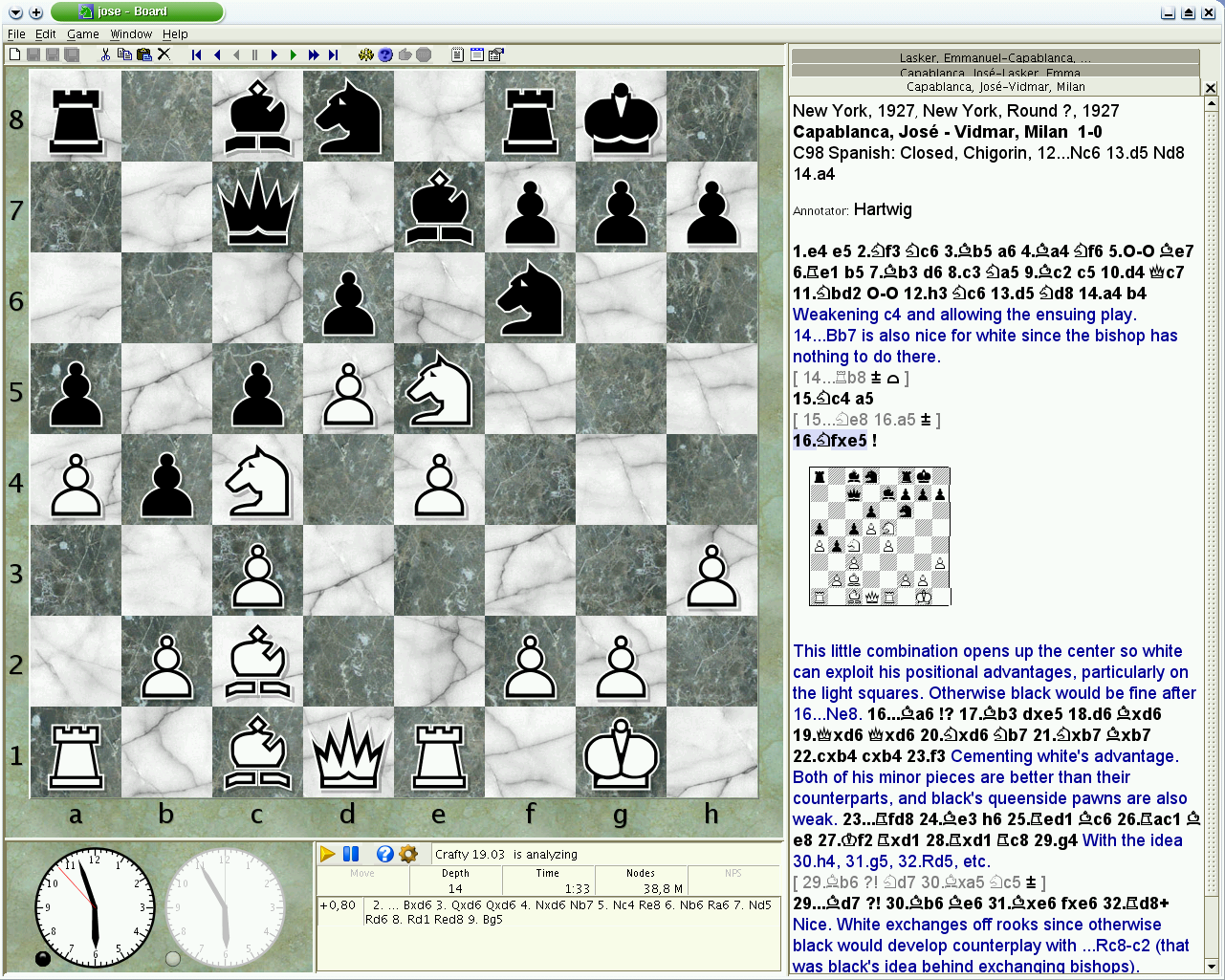
Stockfish is already bundled with jose. To enable it for play and analysis do:
- Edit > Options (F9)
- select the 'Engine' tab
- select Stockfish in the list of engines
- below, you can edit all the engine parameters
Note
Please check our FAQ guide to set the optimal settings.
Note
First uncheck these two settings

Right click in the engine name > Configure


Open the Engine menu

Select Stockfish in the engines tab

or open the engine settings in the Analysis board

Open the engine settings

Click the settings button in the analysis page

